Posts

Showing posts with the label terminal

Project Wild Penguin 22.4.2017: To delete directories inside current directory whose contents are less than a given size

With GNU find and GNU coreutils, and assuming your directories don't have newlines in their names: find . -mindepth 1 -maxdepth 1 -type d -exec du -ks {} + | awk '$1 <= 50' | cut -f 2- This will list directories with total contents smaller than 50K. If you're happy with the results and you want to delete them, add | xargs -d \\n rm -rf to the end of the command line. Command: find . -mindepth 1 -maxdepth 1 -type d -exec du -ks {} + | awk '$1 <= 50' | cut -f 2- | xargs -d \\n rm -rf Source:  https://unix.stackexchange.com/questions/214089/command-to-delete-directories-whose-contents-are-less-than-a-given-size

Project Wild Penguin 23.4.2017: To list the size of sub-directories inside a directory using terminal

Simple command to list the size of sub-directories inside a directory using terminal : du -sh * | sort -h will get you a human-readable ascending list of the sizes of files and subdirectories in your current directory, du -sh will summarize the current directory size. Source:  https://askubuntu.com/questions/426809/how-to-list-the-size-of-a-directoy-and-subdirectories-and-files-inside-it-by-ter

Project Wild Penguin 20.4.2017: Wifi Connection Bug in Xubuntu 17.04

After updating my Xubuntu to latest version 17.04, I've found out that my wifi was disabled. No wifi connections were being shown in the indicator plugin. On googling, I've found out that there is a bug in the latest release. So to fix the bug, I followed the steps mentioned in one of the solutions provided by the good folks at askubuntu.com. The steps given were as follow: Open terminal and run: sudo vim /etc/NetworkManager/NetworkManager.conf   At the bottom of the file, copy and paste the following: [device] wifi.scan-rand-mac-address=no     Then just save and close the file and run: sudo service network-manager restart Check if Wifi is enabled or not. If it is still not enabled, go to Softwares & Updates > Additional Drivers > Click on Do not use the device under Broadcom Wireless Drivers as shown in the image below.      5. Click on Apply Changes and then restart the system, the Wifi should be enabled now. Hope...

Project Wild Penguin 18.4.2017: Label Partitions and Automount on Startup

Image
Label Partitions: To label partitions on Linux based system from command line, follow the process given below: Replace /dev/sdxN with your partition (e.g. /dev/sdc1 ). for FAT32: sudo mlabel -i /dev/sdxN ::"my_label" or: sudo fatlabel /dev/sdxN my_label for NTFS: sudo ntfslabel /dev/sdxN my_label for exFAT: sudo exfatlabel /dev/sdxN my_label for ext2/3/4: sudo e2label /dev/sdxN my_label for BTRFS: sudo btrfs filesystem label /dev/sdxN my_label To label them through GUI based app, you can use GParted tool. Automount Partitions: To automount partitions on startup, follow the process given below: Fire up a terminal. [IMPORTANT] sudo cp /etc/fstab /etc/fstab.old - Create a backup of the fstab file just in case something unwanted happens. sudo blkid - Note the UUID of the partition you want to automount. sudo nano /etc/fstab - Copy the following line to the end of the file, save it and reboot afterwards to check if it worked. ...

Project Wild Penguin 17.4.2017: Fix duplicate sources.list entry

Image
To fix the above mentioned error, follow the list of steps that most easily provides the solution (also to backup PPA repository and other features too): You can remove duplicate entries in few easy steps with Y PPA Manager sudo add-apt-repository ppa:webupd8team/y-ppa-manager -y sudo apt-get update sudo apt-get install y-ppa-manager -y Open y-ppa-manager form Dash Enter You Admin Password. Double Click On Advanced. Scan & Remove Duplicate PPA's & Click Ok. It will take some time ( 1 or 2 Mints ) To Scan & Remove Duplicate PPA's. Source: https://askubuntu.com/questions/120621/how-to-fix-duplicate-sources-list-entry

Project Wild Penguin 12.4.2017: Installing Broadcom Wireless Drivers to connect to JBL Bluetooth Speaker on Xubuntu 16.10

Image
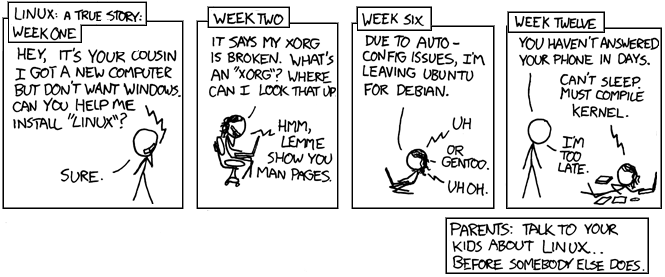
To install Broadcom Wireless Drivers on Xubuntu 16.10 to connect to JBL Bluetooth Speaker for a more immersive sound experience during special occasions as beautifully depicted in xkcd comic below with an important life lesson. Please follow the steps given below: 1. Knowing what Broadcom wireless card you have : Open the terminal and run the following command: lspci -nn -d 14e4: Output would be as given below: 2. Preparing the System: Now run the following commands: sudo apt update sudo update-pciids 3 . Installing the Package: Run the following command as per your package type: sudo apt install <PACKAGE_NAME>   Package can name be identified from the following table: BROADCOM WIRELESS TABLE (Updated November 8, 2016) PCI.ID 14.04 LTS 16.04+ ------------------------------------------------------------------------------------ 14e4:0576 Special Case #1 UNKNOWN 14e4:4301 ...

Project Wild Penguin 4.4.2017: Removing lock from a file locked through root

Image
While working on my secret project. I came across several files on my external hard drive that had a lock icon on them. On researching, I found that it is because that my current user has only read permission and write permission is for root user only. So, I searched for a way to remove the root lock from the files. I came across several solutions. The best one is the following: chmod ugo+rw myfile.txt     Enjoy thix xkcd comic about authorization:   Source: https://askubuntu.com/questions/155874/is-it-possible-to-remove-lock-from-a-file-locked-through-root. https://xkcd.com/1200/

Project Dumbledore - How to download YouTube Playlist on your system

Image
As, I was going through some great lectures available on YouTube, I thought of saving them all in a playlist and then downloading them all for offline viewing on my system. After googling for few minutes, I found this great command line program youtube-dl  to achieve this. It ticks all the right boxes - simple, open source, platform independent and python based. To install this on Ubuntu based systems, run the following command on your terminal: sudo apt-get install youtube-dl To download YouTube playlist, run the following command: youtube-dl -ctik   https://www.youtube.com/playlist?list=XXXXXX It has many other great features, be sure to explore them all. Though, I have found a problem that it downloads video and audio files separately and then combines them together in a single file leaving two extra files after each download which needs to be removed after the download is complete. I haven't looked into it to find the issue. If I find the solution, I will ...

Project CleanSlate - Bash Script to Install Your Favorite Applications on Xubuntu

Image
So, I kinda crashed my HDD last weekend. But thankfully, I have had made a backup of all important data. But sadly, I haven't yet find a way to make a backup copy of my customized Linux OS with all my favorite and necessary apps and settings. But I got a brief flashback of the horror that I used to go through earlier while installing Ubuntu as shown below: But thanks to Xubuntu, I don't have to face such horrors again. Even though, my habit of experimenting and to resurrect the buried ghost of Windows led me to this: Thankfully, my sanity returned and I decided to install only Xubuntu on my system. Also, I decided to follow the principle of automating and wrote a bash script to install my following favorite (and must have) apps on my newly installed system: vim - Text Editor for all my programming tasks and scripting gedit - Another Text Editor Docky - Dock Application vlc - Media Player smplayer - Another Media Player Deluge - BitTorrent Client Clem...